
Delete Mail from the Mail Server with Mozilla 1.3/Netscape 7 on Mac OS X
This tutorial will show you how to set up Mozilla 1.3 or Netscape 7 for Mac OS X to remove mail from the mail server once the program has downloaded a copy of the new messages. The screenshots were taken from Mozilla 1.3, but if you are using Netscape 7, you should find this tutorial to be equally relevant.
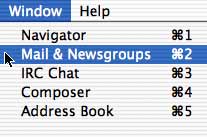
- Once you've opened Mozilla, click on the menu labeled "Window," and select "Mail & Newsgroups."
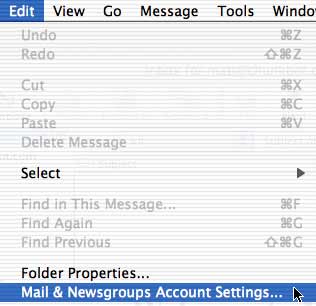
- Then, once the Mail & Newsgroups portiion of Mozilla opens, click on the menu labeled "Edit," and select "Mail & Newsgroups Account Settings."
- On the left-hand side, underneath the heading for a particular group of Account Settings, click on "Server Settings." Uncheck the box labeled "Leave
messages on server."
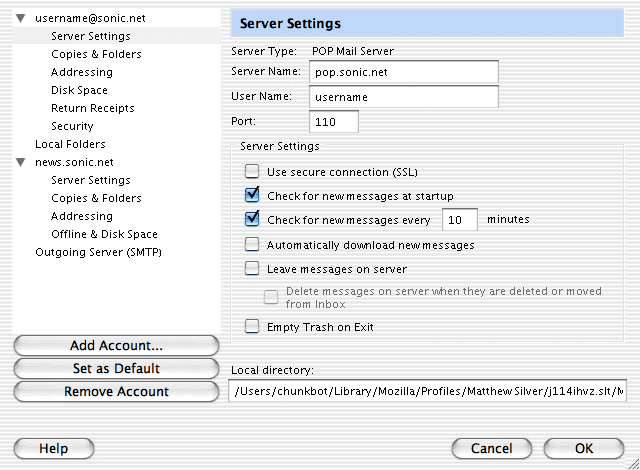
That's it! Press "OK" and close the Account Settings window. Mozilla 1.3 or Netscape 7 will now delete messages from the mail server after it downloads a copy of the new messages to your computer. If you'd like help with Mozilla or Netscape's other features, please take a look at the help menu, located at the top of the screen. Back to the Macintosh setup guides.